The Missing Windows 8 Guide

After reading a review of Windows 8 it occurred to me that a big problem for Microsoft is that they have failed to explain why they’ve made the changes they have. This is my version of a guide I hope they will write. My views in this document are not necessarily those that I agree with, but they are what I imagine Microsoft are trying to aim for – if people like it I can spend a bit more time and add some pictures, we’ll see 🙂

NB. I am not an employee of Microsoft, any views or expression in the following text that indicate that I am are fictional.

Welcome to the Why’s of Window 8

Hello, my name is Paul, today I shall be explaining to you why we’ve made some exciting changes to Windows. We know you liked Windows 7 but we know that once you see how your Windows life will improve, we feel sure you’ll love Windows 8 too.

Where is my Start Button?

This is a big change for existing Windows users, but don’t fear we’ll explain how we’ve improved the ‘start’ experience. Since Windows 95 we’ve wanted you to press the big start button to then locate the application or task you want to carry out. This has a few problems that we wanted to improve;

1. When you install an application is easy for it to become lost in the existing menus. We added a ‘just installed’ link in the menu but once selected you didn’t see it again

2. It can be a slow process to locate applications you use a lot, so we helped by allowing you to ‘pin’ to the start menu or by automatically showing your most frequent applications. But that just isn’t enough; often there is not enough space in the menu to show those applications, especially for you netbook owners

3. To help speed up the ‘start’ process of finding and launching your applications we introduced ‘pinning’ to the task bar. But that proved to be a little confusing. Also we still have the same problem with space

4. Launching every application to, “just see if”. Launching your news reader to see if a new article was in, launching the email application to see if you have new email, etc., etc. The more sources of information you have, often meant the more application you had to go around opening.

Those problems are not necessarily big problems and not everyone would suffer them, but we felt we could do better. The answer is the ‘Windows Start Screen’. Here you not only can you pin your favourite applications to be, “front and centre” when your machine starts, they now also have the opportunity to show you important information without even having to open the applications. That’s all good but once you move away from the Start Screen how can you find it again? For new machines you have a dedicated Windows button that will bring the screen back. If you have a keyboard just press the Windows key. The final way is to you use your ‘Charm’ bracelet. Yes honestly. Ok, it is cheesy but one of our goals it to ensure the start screen can be used by people holding devices. When you hold the device your right wrist will be next to the edge of the screen, imagine you were wearing a charm bracelet, the charms would fall next to the screen. These charms would be available whenever you flicked your wrist around. Yes stay with me, I said it was silly. Back to Windows 8, with your right hand you can flick out the right side of the screen and the Windows 8 charms appear. If you don’t have a touch device you can point your mouse to the top right of the screen or use Windows Key + C and they’ll appear. One of the charms is the Windows logo which, yes you guessed it, will also take you to the Start Screen.

How do I Search?

In Windows 7 when you wanted to search for an application you had to learn that you needed to press start and enter the search into the box that appeared at the bottom of the menu. That wasn’t obvious. If you wanted to search for files then you used File Explorer or Windows Key + F. That wasn’t as nice I we’d liked either. Then if you wanted to search in a specific context, such as within an application or on the internet then you had to discover how to do that too. It just didn’t feel like a consistent or easy way to carry out a search. In Windows 8 we’ve decided to fix this. In the Charms there is a Search charm, this charm shows you the best search sources for the application you are currently using. For example, if you select Search and you were looking at the Mail tool, then the Search will default to looking into your emails. However, the alternative search sources are also shown, allowing you to easily search for other items, such as applications. Windows 8 is also smart enough to gather results from multiple sources if that makes sense for the current application, it will show the results of your search term against each source as you type. Also note that Windows key + F still works, this will set the default search source to be Files, but again it’s easy to select a different source.

How do I use Multiple Windows?

Windows gets its name from the ability to show many application Windows at once, so it would appear that we have moved away from that with Windows 8. What we’ve realised is many people share the following experience;

When I use Windows I usually carry out one task at a time, and I like to have that application maximised. When I need to quickly carry out a secondary task I can launch that application and simply move back to the main one when I’m ready. However, sometimes I want to keep an eye on another task whilst still working in my main application. Officially that is responding to an important conversation in Skype but occasionally I also like keep my catch-up TV Netflix shows streaming whilst I work. The problem with the way I work is that it is often difficult to get the right size for the applications. When I put two applications side-by-side Windows 7 tried to help by snapping them to each edge. This has a couple of problems;

1. The screen is shared equally between my main and secondary applications when I want to concentrate on the main one

2. The secondary application is often designed to work as a primary application with lots of screen space. It is often difficult to get the size small enough to allow room for my application whilst remaining large enough to be useful. This leads to constant, “scrollbar nudging” as I try to read parts of the secondary application that are not in view

Windows 8 addresses these problems with the idea of Snap-View. The screen is partitioned into one of two basic layouts;

a) Full screen – your application has all the screen space

b) Snap view left or right – your main application has the majority of the screen whilst the secondary application is provided a smaller portion

This is important because Windows 8 can now understand which of the applications is your primary or main and which one is your secondary. Therefore the application is now told which view it should be showing. This is great because the application understands how best to adapt itself for the smaller view, so no more “scrollbar nudging” – hurray.

How do I close an Application?

Windows has had a long history with the Minimize, Maximize and Close buttons. We’ve seen why we no longer need the Min/Max buttons so that leaves us with the Close. But why do we have a Close button? Now we have our main task application in full-screen (or at least predominate) the other application can’t get in the way. Perhaps we are worried those applications we are not using are hogging our systems? Windows 8 knows what your main application is, it keeps track of the applications that you have not used for a while. When you move away from an application Windows 8 will do its best to stop any application hogging the system. However, should you move back to the application it will be ready faster than opening the application from scratch. If your application hasn’t been used for a long time then Windows may place it into a deeper sleep which may take a little longer to start, but you’ll never have to wait a long time. So why close an application? If you really want to you can drag the application down and off the machine, but this should rarely be needed. Windows 8 just makes life easier, don’t worry about the applications you are not using, let Windows make the best choices for you.

How do I find an application that is already running?

In previous version of Windows you had a few choices of how to see what other applications are running. Windows Key + Tab or ALT + Tab still work on Windows 8 too. However we really wanted to make it easy to not only see what was running but also make it easy to select on a hand held device. So, like the Charms on the right hand side, the running applications can be found by flicking the left hand edge of the screen (or top left with the mouse). So for you touch users it’s left for running applications, right for contextual choices and main settings. For mouse users it’s the top left or top right.

How do I shut-down my machine?

We often heard how confusing it was to press Start in order to Stop. We agree. To shut your system down, go to the charms and select System. You can then choose how you want to shut the system down, easy.

Where do I find the settings for my Application?

In previous versions of Windows finding the options depended entirely on the application you were using. This could prove to be difficult. Was it tools->options, file->preferences, where are they? In Windows 8 we keep contextual information in the Charms, so you guessed it, the settings for your application is the Settings Charm. No need to for that frustrating search in the menus, just straight to the Charms.

Where’s my menu gone?

In all previous versions of Windows you application menu was found at the top of the main Window (with a few exceptions). Menus have some problems; they start to clutter up the screen space, they are really difficult to select for touch screen users, they are not always good at clearly separating the tasks you want to carry out, and often show menus that are not the relevant to your current task. Windows 8 introduces two separate ‘application bars’; one for navigating choices, and one for carrying out actions. These application bars are usually hidden until the user requires them, thus freeing up the screen space. Whilst we’ve seen you can access your running applications from the left and Charms from the right, the application bars are accessed from the top and bottom. By flicking from the top or bottom will display the contextual application bars. The top application bar will contain your navigation choices such as accessing a specific page, returning home, etc. The bottom application bar will contain contextual actions, add contact, accept holiday request, etc. We believe this will greatly simplify the old menu experience.

You can feel safe to install new applications from the Windows Store

The success of Windows has a dark side to it. Many people wanted to exploit the ease of installing applications on Windows by installing their own ‘bad’ applications. It became such a worry that lots of people lost faith in applications, and many 3rd party developers simply could not provide applications because of a lack of user trust. Windows 8 introduces a number of security features and mechanisms that all mean that if you install an application from the Windows Store you can do so without worry that it will infect the whole of your machine. So go an install as many applications as you can, there is wide array of choices to try without fear.

Can I still run my old Applications in Windows 8?

We know you’ve invested in software and whilst there are a lot of new and exciting applications that are specific for Windows 8 you may still wish to continue with an older purchase. Now for a little bit of honesty…there are a number of versions of Windows 8, the one you choose can affect your ability to run older applications. Essentially there is Windows 8 for every device, and Windows 8 for smaller devices, I say smaller but that is also blurred. The more accurate statement is to say WinRT only devices. If you have a WinRT only device it means you can run all the lovely Windows 8 applications but none of your old applications can be installed, sorry. If you use what is termed a ‘Windows Pro’ device or any existing Windows capable desktop/laptop/netbook then using Windows 8 on these devices will happily run your old applications. So do a little bit of research when choosing your device.

Can I use my existing devices; printers, external disks, etc?

This is really the same questions as, ‘Can I still run my old Applications?’. Check the type of device you have and the device you intend to install Windows 8 on. You can also run the Windows 8 Compatibility Assistant before upgrading your machine. This will provide a report about any known issues you may encounter before you attempt to install Windows 8.

Sometimes I just want a bit of entertainment when I travel, can Windows 8 help?

We know you like using your iPad, it’s not as heavy as most netbooks, no real need for a keyboard. Just good battery, and big enough to watch films and play games. This is where you probably want to choose a WinRT device, such as the ‘Surface’. These devices are built to specifically run Windows 8 and no more. Therefore they can be trimmed to just what is needed which often means lighter devices and better battery life. Of course this isWindows 8, if you want to use your lovely Ultra-book to do a bit of older application work and then switch to a fanatically smooth game in Windows 8, that options is still there, that’s why Windows 8 is so good.

I like to have a lot of short cuts on my desktop, but I’ve no desktop?

The way people use Windows often mirror the physical world. Some people love to have a very clean desk, and ensure that it’s clean and empty at the end of the day. Others prefer organised chaos and have lots of items, in their correct places, scattered around their desk. In Windows some people like to create lots of desktop shortcuts. Why do they do that? To easily find them again. However, in Windows 8 you can pin items to your start screen, if they are ‘tile aware’ then they can start providing useful information without you having to open them. No more chaos, just everything you need is one Windows Screen selection away.

How do I share the information I’m looking at?

Windows 8 understands that in today’s world applications need to be able share information with your friends and colleagues. But rather than every application having to understand all the different possible destinations (people you know, other applications, etc.) Windows 8 offers applications the chance to talk to each other and therefore share information. Since this should be common, and contextual, Windows 8 provides a Share…yes a Share Charm. With the information on the screen, simply select the Share Charm and send the information to the destination of your choice.


Thanks for reading, we hope you can now appreciate all the great new changes to Windows.

Paul
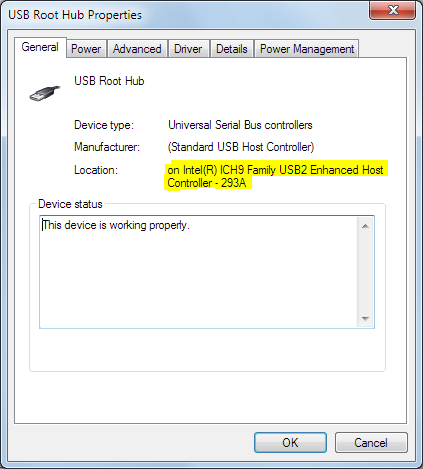
How can you tell if your USB devices are plugged into a USB2 port?

Ok my machine is behind the times, but still it’s important to know if you’ve plugged your USB2 device into a poor USB1 port. Apart from getting a warning about ‘your device could perform faster’ how can you tell?

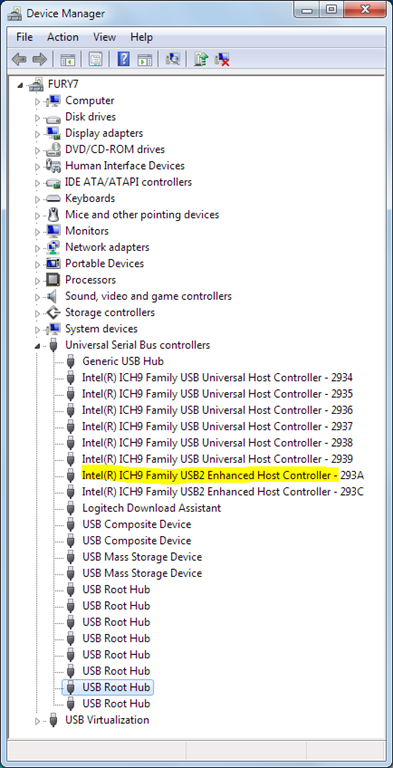
  1. First off launch ‘Device Manager’, typically found in Control Panel or if you’re Win7+ just Start->type in ‘Device Manager’
  2. Open the Universal Serial Bus Controllers
  3. Look for ‘USB2 Enhanced Host Controller’ (or better) to see what type of hubs your machine supports.
    image
  4. Now open each of the ‘USB Root Hub’ nodes until you find the ones using the USB2 Enhanced Host
  5. Now look at the Power tab and you’ll see which devices are attached

It’s not as nice as you might like, but it’s one way to see if you are using the correct hubs, it’s also a good way to avoid putting USB1 devices onto a USB2 hub too.

Nice quote from Apple

I don’t know if it’s true or not, but apparently this is the letter you get when working for Apple. I thought I’d keep it around as I think it’s a good attitude;

There’s work and there’s your life’s work.

The kind of work that has your fingerprints all over it. The kind of work that you’d never compromise on. That you’d sacrifice a weekend for. You can do that kind of work at Apple. People don’t come here to play ¡t safe. They come here to swim in the deep end. They want their work to add up to something. Something big. Something that couldn’t happen anywhere else.

Welcome to Apple.

Resolving Unidentified Network in Windows 7

Today something very strange occurred and since I wasted far too much time on it I thought I’d better write it down. I started my machine and noticed I didn’t have any internet access but I could see other machines on the network. Looking at the Networking control panel (Open Network and Sharing Center) I could see that my LAN was showing a ‘public unidentified network’. After a lot of head scratching I went to the ‘Troubleshoot Problems’. Selected the ‘Internet Connections’ and requested it check my connection to the internet. It ran and told me my DHCP was not set, and went ahead and set it for me. Suddenly my Work Network reappeared and everything was good. I’ve no idea what had reset the DHCP settings but the resolution was easy enough.

Step-by-step guide to creating Pub Sub with NServiceBus

Recently I have been tasked with creating a prototype of an application using NServiceBus. However I found that the current documentation/samples can be a little difficult to follow. I’m guessing because a) it’s recently changed to v3 and some of the docs haven’t been upgraded b) when you “grow up” with a project it’s often difficult to remember what problems newbies will have. So I’ve decided to write this guide to help me remember and if it’s useful to anyone else then great. So here goes;

  1. Create a new project as a class library called ‘Messages’

  2. Add a class file called ‘MyEvent.cs’:

    using System;
    
    namespace Messages
    {
        public class MyEvent
        {
            public Guid EventId { get; set; }
        }
    }
    

  3. Create a new project as a class library called ‘Publisher’

  4. Add references to log4net.dll, NServiceBus.dll, NServiceBus.Core.dll, and NServiceBus.Host.exe (yes exe)

    if you installed using NUGet these will be in your package files, otherwise you’ll need to download NServiceBus and grab them from the install location’s binaries folder

  5. Add a project reference to ‘Messages’

  6. Add an app.config to the project

    This is configuring the queue where any messages that are deemed in error will go

     <?xml version="1.0" encoding="utf-8" ?>
    <configuration>
      <configSections>
        <section name="MessageForwardingInCaseOfFaultConfig" type="NServiceBus.Config.MessageForwardingInCaseOfFaultConfig, NServiceBus.Core" />
      </configSections>
    
      <MessageForwardingInCaseOfFaultConfig ErrorQueue="error"/>
    
      <runtime>
        <assemblyBinding xmlns="urn:schemas-microsoft-com:asm.v1">
          <dependentAssembly>
            <assemblyIdentity name="Common.Logging"
                              publicKeyToken="af08829b84f0328e"
                              culture="neutral" />
            <bindingRedirect oldVersion="1.2.0.0"
                             newVersion="2.0.0.0"/>
          </dependentAssembly>
        </assemblyBinding>
      </runtime>
    </configuration>

  7. Add a class files called ServerEndpoint.cs and TestPublisher.cs, we’ll add the code later

  8. Add a config file called NServiceBus.Host.exe.config

    This is configuring the queue that we’ll be publishing message to, the value must match the qualified class name of the publisher’s project configuration class, we’ll do that next

    <?xml version="1.0" encoding="utf-8" ?>
    <configuration>
      <appSettings>
        <add key="EndpointConfigurationType" value="Publisher.TestPublisherConfig, Publisher"/>
      </appSettings>
    </configuration>
    

  9. Now for the code in ServerEndpoint.cs

    The code uses an “ISupport” style to declare that it should be executed a bit like a console.main(). NSB uses injection to populate the bus property, so it will be available when Run() is executed

    using System;
    using NServiceBus;
    using Messages;
    
    namespace Publisher
    {
        public class ServerEndpoint : IWantToRunAtStartup
        {
            public IBus Bus { get; set; }
    
            public void Run()
            {            
                Console.WriteLine("Press 'Enter' to publish a message.To exit, Ctrl + C");
    
                while (Console.ReadLine() != null)
                {                
                    var eventMessage = new MyEvent();
                    eventMessage.EventId = Guid.NewGuid();
                    
                    Bus.Publish(eventMessage);
    
                    Console.WriteLine("Published event with Id {0}.", eventMessage.EventId);
                    Console.WriteLine("==========================================================================");
    
                }
            }
    
            public void Stop()
            {
    
            }
        }
    }
    

  10. Now to add the code for the core of the publisher code, ‘TestPublisher.cs’

    NSB likes to use the “ISupports” style, so here we can see the class explaining to NSB that it configures the endpoint, that it is a publisher and that NSB should call it as the endpoint starts. Inside the Init() it is explaining what types NSB should consider as implementing messages, i.e. our Messages dll.

    using System;
    using System.Collections.Generic;
    using System.Linq;
    using NServiceBus;
    
    namespace Publisher
    {
        public class TestPublisherConfig : IConfigureThisEndpoint, AsA_Publisher, IWantCustomInitialization
        {
            public void Init()
            {
                Configure.With()                
                    //this overrides the NServiceBus default convention of IEvent
                    .DefiningEventsAs(t => t.Namespace != null && t.Namespace.StartsWith("Messages"));
            }
        }    
    }
    

  11. Now we can move onto the subscriber, add a new project call ‘Subscriber’ as a class library
  12. Add the NSB references again, log4net.dll, NServiceBus.dll, NServiceBus.Core.dll, NServiceBus.Host.exe
  13. Add the project reference to ‘Messages’
  14. Add app.config file

    this will explain to NSB which messages we are listening for and where (the endpoint) to find them

    <?xml version="1.0" encoding="utf-8" ?>
    <configuration>
      <configSections>
        <section name="MessageForwardingInCaseOfFaultConfig" type="NServiceBus.Config.MessageForwardingInCaseOfFaultConfig, NServiceBus.Core" />
        <section name="UnicastBusConfig" type="NServiceBus.Config.UnicastBusConfig, NServiceBus.Core" />
      </configSections>
      
      <MessageForwardingInCaseOfFaultConfig ErrorQueue="error"/>
      <UnicastBusConfig>
        <MessageEndpointMappings>
          <add Messages="Messages" Endpoint="Publisher" />
        </MessageEndpointMappings>
      </UnicastBusConfig>
    
    </configuration>


  15. Add a class file ‘EndPointConfig.cs’

    this is almost the same as for the publisher but notice is says AsA_Server this time rather than AsA_Publisher

    using System;
    using System.Collections.Generic;
    using System.Linq;
    using System.Text;
    using NServiceBus;
    
    namespace Subscriber
    {
        public class EndPointConfig : IConfigureThisEndpoint, AsA_Server, IWantCustomInitialization
        {
            public void Init()
            {            
                    Configure.With()                
                    .DefiningEventsAs(t => t.Namespace != null && t.Namespace.StartsWith("Messages"));
            }
        }
    }


  16. now let’s add the final bit of code, the handler for the message. Create a class file ‘HandleMyEvent.cs’

    using System;
    using System.Collections.Generic;
    using System.Linq;
    using System.Text;
    using NServiceBus;
    using log4net;
    using Messages;
    
    namespace SubScriber
    {
        public class HandleMyEvent : IHandleMessages<MyEvent>
        {
            public void Handle(MyEvent message)
            {
                Logger.Info(string.Format("Subscriber received MyEvent with Id {0}.", message.EventId));            
                Console.WriteLine("==========================================================================");
            }
    
            private static readonly ILog Logger = LogManager.GetLogger(typeof(MyEvent));
        }
    }


  17. almost there. We now need to have something to run. The NServiceBus.Host.Exe is going to do all the work but we have to do a couple of things. First Build (don’t run) the whole solution. Since we referenced the .exe this will be enough for Visual Studio to copy it to each project’s local bin folder
  18. For both Publisher and Subscriber open their projects and set the Debug->Start External Program to bin the NServiceBus.Host.Exe in their respective Debug\bin folders
  19. Now ensure they will both run by right clicking on the Solution and ‘Set Statup Projects…’. Ensure that both Publisher and Subscriber are ticked and Multiple Projects is selected
  20. Now run the solution and press enter in the Publisher. You should see the messages sent to the subscriber
  21. You can now add additional subscribers in exactly the same way, just be sure to correctly rename their namespaces to avoid clashes, NSB doesn’t like that
  22. That should be it. You can find out more about NServiceBus from the site documentation and the community group. Just be careful as when I wrote this some of the documentation is old and I found that confusing. I hope this was useful

Unit Test Adapter threw exception:The given assembly name or codebase was invalid. (Exception from HRESULT: 0x80131047).

I was happily running my SpecFlow tests today and suddenly they all stopped working, and with an unhelpful error message;

Unit Test Adapter threw exception:The given assembly name or codebase was invalid. (Exception from HRESULT: 0x80131047).

Obviously I hadn’t changed anything to cause it right? Well, actually I had added a simple configuration section to my App.Config. I commented that out and it all sprang to life. So if you see that error, read, “I cannot read the config file, please fix it”

IIS does not list a web site that matches the launched URL?

For the second time in as many weeks I was caught out by the following error message;

—————————
Microsoft Visual Studio
—————————
Unable to start debugging on the web server. IIS does not list a web site that matches the launched URL.

Click Help for more information.
—————————
OK   Help  
—————————

Probably like many other developers I do not have the time to track down the specific nature of the necessary security requirements. So my advice…start Visual Studio as Administrator. Yes I know it’s naughty, but life’s too short.

Poor mans ORM–how to easily persist data

Carrying on from my post about easily loading data from a database into a list, I thought I’d publish how to easily save the data from a list of objects into the database. It works by convention, so you need to create a stored procedure called <type name>_Save and provide an argument for each property you want to be saved.

        
public void <TCollection, TItem> Save(TCollection dataToSave) where TCollection : IList         
{             
  TCollection instance = (TCollection)Activator.CreateInstance(typeof(TCollection));             
  IList list = instance as IList;             
  if (list == null)             
  {                 
    throw new InvalidConstraintException("must provide an IList");             
  }              
  Type itemType = typeof(TItem);             
  string procedureName = string.Format("{0}_Save", itemType.Name);              
  SqlParameter[] commandParameters =                     
    SqlHelperParameterCache.GetStoredProcedureParameterSet(this.connectionString, procedureName);
  using (SqlConnection connection = new SqlConnection(this.connectionString))             
  {                 
    connection.Open();                 
    foreach (var item in dataToSave)                 
    {                     
      using (SqlCommand command = new SqlCommand())                     
      {                         
        command.Connection = connection;                         
        command.CommandType = CommandType.StoredProcedure;                         
        command.CommandText = procedureName;                          
        foreach (SqlParameter inputParam in commandParameters.Where(p => p.Direction == ParameterDirection.Input 
            || p.Direction == ParameterDirection.InputOutput))                         
        {                             
          string parameterName = inputParam.ParameterName.Replace("@","");                             
          object value = GetValue(item, parameterName);                             
          inputParam.Value = value;                             
          command.Parameters.Add(inputParam);                         
        }                         
        int rowsAffected = command.ExecuteNonQuery();                         
        System.Diagnostics.Debug.WriteLine("Called " + procedureName + ", rows affected: " + rowsAffected);
      }                 
    }
  }
} 

I hope you find the code useful, I’ve certainly found it a quick and easy way to prototype code

Windows 8 Release Preview – improvements but lacking

I’ve finally upgraded my version of Windows 8 and I wanted to see if has become a useful edition for the desktop user.

First off, it’s “preddy”. There have been a couple of subtle eye candy changes that are nice, not enough to recommend buying it but it’s nice. Once opened your are faced with the tablet UI, I mean Metro. Felt a little better, so I tried out the Weather application.

Annoyance #1 – Poor Feedback

I opened the Weather app and nothing happened. Actually since I am a developer I know what just happened. The initialisation of the application had taken too long and Windows had closed it. Now this will be new to desktop users as again we see the tablet UI in action. Phone/Tablet apps expect snappy responses to starting up. Mobile OS’ enforce this expectation by timing how long it takes the app to become responsive, too long and it simply kills it off. The problems here are a) no feedback, if at least said, “sorry that app was unresponsive, please try again” but no, just nothing b) Windows is expected to work on older kit that may not respond as fast as a dedicated mobile platform would.

Annoyance #2 – No .net 3

After witnessing the lack of feedback I felt I should blog about it. So off to install Live Writer. The first message I received was that I needed to install .net 3. Now whilst I understand that for a tablet you want to keep the software footprint as small as possible and that Metro is only .net 4 but in reality most desktop users will be using .net <4. So making me wait for it to be installing is a) annoying b) an example of Microsoft ignore the desktop user.

Annoyance #3 – corners vs. mouse

Back to Metro, and I’m purposely still using the mouse (my PC does support touch). Scrolling left I kept accidently bringing up the Start/Desktop menu in the bottom left corner. The reason is because I quickly “throw” the mouse pointer to the bottom left to scroll left (since Metro is heavily biased to horizontal scrolling). However, it’s quite hard to do that quickly and accurately enough to hit the scrollbar and not the start menu. Again, I feel MS have ignore the mouse user in the UX.

Annoyance #4 – vanishing scrollbar

Now this one is REALLY annoying. For example, I launched the People app which results in a large amount of horizontal scrolling. So I move my mouse to the bottom scrollbar and start reading and clicking to scroll through the list. Except I pause too long on a set of people and the scrollbar vanishes. But I’m reading the people so I just carry on clicking but nothing happens. I have to jiggle the mouse to get the scrollbar back. Come on MS this is terrible UX. Again, ignoring the desktop/mouse user.

Annoyance #5 – hotmail is better than mail

Next over to the mail tool. Hurray they’ve made it easier to see the different folders. Well done. Oh dear still cannot request to view the content of junk mal, how annoying. But the most annoying problem is the trickle feeding of items into the list. Normally when you open email tools all the mail arrives in one neat bundle. With Metro the emails trickle in as they’re observed by the system. From a UX point of view I’m trying to read the title of the latest item as it vanished off the bottom of the screen…but at a choppy rate, every time I catch up with it, it moves again. Terrible UX.

Annoyance #6 – metro, should promote clarity not noise

Still far too noisy with desktop apps. After installing Visual Studio 2010RC my Metro home looked like this;

image

So not only is it full of noise, I have not opened 90% of them, they were apps that were presumably launched by the installer. Come on MS, if you believe in Metro (as I do) then go back to the goals and give us what we need…please.

So in summary I’m still annoyed by Windows 8. To be fair I have seen some incremental improvements especially in the built in applications. However, MS really need to improve the core desktop UX as currently it is frustrating to use. I certainly would not recommend moving from Windows 7. There is still time to change, come on MS.