Phone development tip – disconnecting debug sessions?

Recently I’ve been asked to investigate a number of issues involving the Tombstone state. During the investigations I was using the ‘Tombstone upon deactivation’ and I was experiencing a number of lost connections between Visual Studio and the emulator/device. What I didn’t appreciate was these disconnections are almost always caused by a simple exception in the application. I.e. the app was failing because of a null exception which was causing the debugger to disconnect rather than break(). So my tips are;

  • If you get a disconnect, place breakpoints at positions *before* you expect to hit a problem area, do not rely on Visual Studio break-pointing and showing you the exception
  • Once you have a disconnect you will probably have to un-install the app from the emulator/device otherwise Visual Studio may not reconnect [Edit] I’ve also found that just directly launching the app from the emulator and then restarting the debug session also works. [Edit 2] Also engaging the lock-screen can also clear the problem. [Edit 3] Actually I think it’s just about waiting for a bit!
  • Test for Tombstone, it still exists!

One way to ease writing PropertyChanged events

Here’s a quick tip for those who want to write propertychanged events but dislike frameworks;

public event PropertyChangedEventHandler PropertyChanged;
private void NotifyPropertyChanged([CallerMemberName] String propertyName = "")
{
  if (PropertyChanged != null)
  {
    PropertyChanged(this, new PropertyChangedEventArgs(propertyName));
  }
}

Example;

Guid currentProfileId;
public Guid CurrentProfileId
{
  get
  {
    return this.currentProfileId;
  }
  set
  {
    if (this.currentProfileId != value)
    {
      this.currentProfileId = value;
      NotifyPropertyChanged();
    }
  }
}

How to use Blend sample data with a LongListSelector


The LongListSelector for Windows Phone is a great control. However, it can be a real pain to design especially when you want to use the Sample Data feature of Blend.

For example, you can  create Sample Data in Blend using a string Property called Name. When you drop it onto a List Box you are shown the data at Design time, this is really useful;

image 

However, if you try the same trick with a Long List Selector your are faced with a blank page. If you try to edit any of the templates you are faced with more blank screens. It is far from ideal. So here is one method to make your Long List Selector projects Blend friendly.

1) Create your Sample Data – if you follow my example create the default Blend Sample with a Property called Name using the format for Name

image

2) Follow the MSDN article for creating a Long List Selector, this way you can test the result and be sure you haven’t made any errors, very easy to do. Don’t worry we’ll use our Sample Data soon

3) Once you have a Long List Selector working we’ll do some surgery. Derive a new class based on our SampleDataSource (if you renamed the SampleDataSource when creating it in Blend, you’ll need to use that name)

namespace Expression.Blend.SampleData.SampleDataSource
{
    public class LongListSampleData : SampleDataSource
    {
        public LongListSampleData() : base()
        {
            dataSource = AlphaKeyGroup<Item>.CreateGroups(base.Collection,
                                System.Threading.Thread.CurrentThread.CurrentUICulture,
                                (Item i) => { return i.Name; }, true);
        }
        private List<AlphaKeyGroup<Item>> dataSource;
        public List<AlphaKeyGroup<Item>> DataSource
        {
            get
            {
                return this.dataSource;
            }
        }
    }
}

4) Add a reference to this new Data Source in App.xaml. Add it to the Resources just like the one Blend added for you;

<Application.Resources>
        <SampleData:SampleDataSource x:Key="SampleDataSource" d:IsDataSource="True"/>
        <SampleData:LongListSampleData x:Key="LongListSelectorData" d:IsDataSource="True"/>

5) Change the various data templates binding from using FirstName to Name

<DataTemplate x:Key="AddrBookItemTemplate">
           <StackPanel VerticalAlignment="Top">
               <TextBlock Text="{Binding FirstName}" />
               <TextBlock Text="{Binding Name}" />

6) Add Binding references to the LongListSelector control;

<phone:LongListSelector
                DataContext="{Binding Source={StaticResource LongListSelectorData}}"
                ItemsSource="{Binding DataSource}"

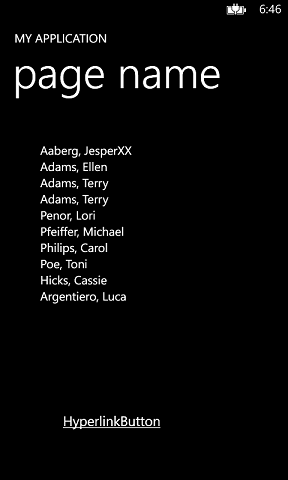
7) Build and run. You should now see something like;


image 

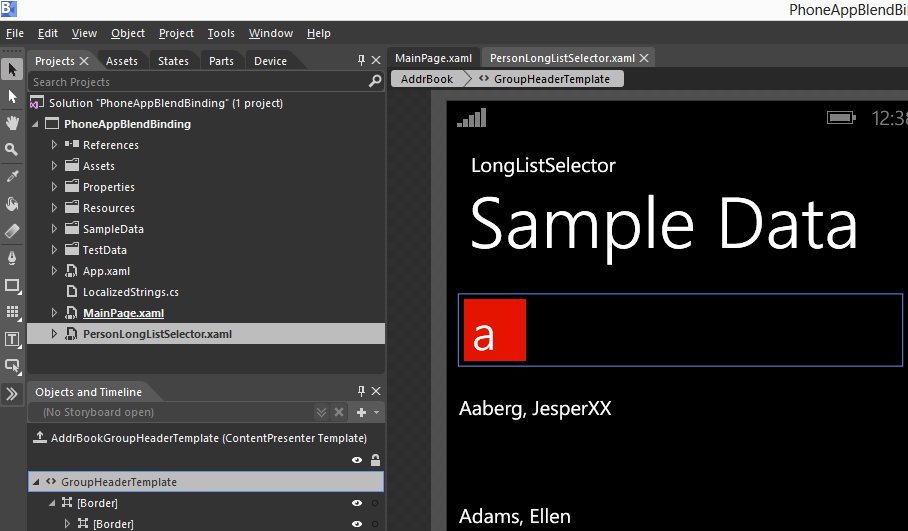
8) View it in Blend or Visual Studio designer. Please note, both designers are a bit flaky – especially Blend. You normally have to close any open window showing the page, in fact it’s often easier to just close the apps down and re-open then. You should then be able to view the selector and all of its templates at Design Time!

image

Could not load type ‘WebPages.Global’

Another in my ‘reminder’ series. I had a very strange error when running a web site; Could not load type ‘WebPages.Global’.

I realised that my problem is related to the way I prefer to create my projects. I like to have a single bin that my projects drop their DLLs in. I like to share that bin folder with my web sites. In this case I was using a new machine and had forgotten to create the file join to enable the sharing. I.e. as far as the web site was concerned there was nothing in the bin folder. A quick join later and we’re back in business.

ADSI, IIS and Windows 7+

Time for another one of my, please-don’t-forget-this-again posts.

I was running some code today that was calling the ADSI (Active Directory Service Interfaces)IIS://LocalHost/W3SVC. However I was getting access denied. After trying every admin user on this earthly realm I decided that access denied was a red-herring. I then realised that ADSI is an IIS6 only feature and not part of IIS7. Once I enabled the IIS6 compatibility features the code started working again.

The Windows Phone Emulator wasn’t able to connect to the Windows Phone operating system

Today I fired up Visual Studio to create a Windows Phone application, just like I had done the past couple of days, only to be faced with;

[Window Title]
Windows Phone Emulator

[Content]
The Windows Phone Emulator wasn’t able to connect to the Windows Phone operating system:

The emulator couldn’t determine the host IP address, which is used to communicate with the guest virtual machine.

Some functionality may be disabled.

[Close]

Hmm, what the **? I had a look around the internet and saw some horrible posts about re-installing the SDK. Ergh. One post mentioned an internal developer who had to uninstall VPNs, and remove all the virtual switches. None of which filled me with joy. So I opened Hyper-V manager and looked at the virtual switch settings for the phone emulator. I nodded sagely, then removed it – hoping the emulator would spot it was missing the settings and recreate them. It worked, the emulator recreated the settings and worked. Hurray! Hopefully it won’t happen too often…strange.

Easy theming with Windows Phone

Easy theming with Windows Phone

Windows Phone has the concept of Dark and Light themes. I really like this idea as I typically have my phone in Dark theme and switch to Light when in bright sunshine. Unfortunately not a lot of applications make use of these themes so I wanted to share the method I use to implement it.

The basics

The idea is to provide your designer, or at least the one within, with a nice clean separation of Light and Dark styles.

clip_image001

Figure 1 Basic file structure

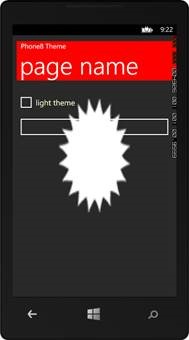
Here we can see the three main components; Dark.xaml, Light.xaml and Master.xaml. Let’s first look at the output so you can see the type of changes you can make. Obviously I’m being garish to exaggerate the difference, and normally I’d be more subtle 🙂 />

clip_image003clip_image005

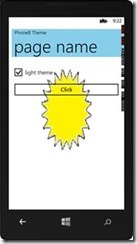
As you can see the explosion is white in the Dark theme and yellow in Light. Also the background brush in the header is red and sky blue for Dark and Light respectively. Essentially any style is available to change. So what have I changed to create this lovely theme sensitive UI?

Example Theme Xaml

Dark;

<ResourceDictionary
xmlns="http://schemas.microsoft.com/winfx/2006/xaml/presentation"
xmlns:x="http://schemas.microsoft.com/winfx/2006/xaml">
<SolidColorBrush x:Key="AppBackgroundBrush" Color="Red"/>
<SolidColorBrush x:Key="AppForegroundBrush" Color="#FFFBFFC9"/>
<Color x:Key="PhoneForegroundColor">#FF6E1919</Color>
<SolidColorBrush x:Key="PhoneForegroundBrush" Color="{StaticResource PhoneForegroundColor}"/>
<ImageBrush x:Key="ImageBrushBackground" ImageSource="/Background.png"/>
</ResourceDictionary>  

Light;

<ResourceDictionary
xmlns="http://schemas.microsoft.com/winfx/2006/xaml/presentation"
xmlns:x="http://schemas.microsoft.com/winfx/2006/xaml">
<SolidColorBrush x:Key="AppBackgroundBrush" Color="SkyBlue"/>
<SolidColorBrush x:Key="AppForegroundBrush" Color="#FF303026"/>
<Color x:Key="PhoneForegroundColor">#FFF5F908</Color>
<SolidColorBrush x:Key="PhoneForegroundBrush" Color="{StaticResource PhoneForegroundColor}"/>
<ImageBrush x:Key="ImageBrushBackground" ImageSource="/BackgroundLight.png"/>
</ResourceDictionary> 

The idea is that you use the same resource keys and change the underlying value to suite the theme. For example, we can see that the ImageSource for ImageBrushBackground is different for each theme.

How do you use the Theme files?

I owe the technique to a great post from IdentityMine, essentially you derive a new static resource type which loads the correct themed xaml *before* your page has started to load. I’ve wrapped this type in a separate component you can just reference and use. Rather than regurgitate the Identity Mine post I’ll explain how to use it, NB or you can just use the sample;

1. Create the Dark and Light xaml files as shown in Figure 1 Basic file structure

2. Add a reference to Pauliom.Theming.dll (or Pauliom.Phone8.Theming.dll)

3. Add a the Master.xaml to the Resources folder (change assembly as appropriate);
<ResourceDictionary xmlns=”http://schemas.microsoft.com/winfx/2006/xaml/presentation&#8221;

xmlns:x="http://schemas.microsoft.com/winfx/2006/xaml"
xmlns:local="clr-namespace:ThemingSample"
xmlns:Pauliom="clr-namespace:Pauliom.Theming;assembly=Pauliom.Theming">
<ResourceDictionary.MergedDictionaries>
<Pauliom:ThemeResourceDictionary Kind="Theme"/>
</ResourceDictionary.MergedDictionaries>
</ResourceDictionary> 

4. The role of the Master is to provide a single place to create a master theme concept, you don’t need to use it so long are you put the ThemeResouceDictionary somewhere in your projects MergedDictionaries

5. Change App.xaml to make the resources available anyway in project, ensure the following in App.xaml, the first reference to Dark is your default, it helps the editors/designers;

<Application.Resources>
<ResourceDictionary>
<ResourceDictionary.MergedDictionaries>
<ResourceDictionary Source="Themes/Dark.xaml"/>
<ResourceDictionary Source="Resources/Master.xaml"/>
</ResourceDictionary.MergedDictionaries>  

6. That is all you need, you are now free to reference those resource keys in the knowledge the changes to the underlying theme will be automatically routed to your specific themed file

The Sample

I hope you find this as useful as I do, and I hope it encourages more applications to use and react to themes. You can find the source and components at https://winphonetheme.codeplex.com
ATI Catalyst Center always crashing

I admit that one of the criteria of buying a laptop was that is must have a dedicated graphics card because I’m do like to play a bit of Left 4 Dead. Unfortunately for me I chose one with a combo of Intel 4000 and Radeon which dynamically switches depending upon the application executed. I say unfortunately because it doesn’t work with Left 4 Dead. In my attempts to force it to work I created an Application Profile in ATI Catalyst Center (CC). Having second thoughts I decided to delete the project…BANG. CC crashed. Restarted app, rebooted, re-installed…crash, crash, crash. The solution was to into you user profile /AppData/Local/ATI/ACE and rename ACE to ACEold (or something). Happy CC again. No idea what the exact issue is, but it did the trick. I hope this helps prevent anyone else losing an hour to head-scratching.

How to Test async and await

This is one of those, “please stop forgetting this dummy” posts aimed at myself. When you want to test an asynchronous method implemented via the Task-based Asynchronous Pattern (TAP) don’t forget to change the default test method;

Default:

[TestMethod]

public void TestAsyncCall() { … }

to

[TestMethod]

public async Task TestAsyncCall() { … }

Windows 8 so far

I’ve been using Windows 8 on my Inspiron Duo for a few months and I thought I’d give a little review.

First off I’m a ‘Windows 8 Pro’ user, I have both WinRT (touch enabled) and ‘legacy’ desktop. I probably fit into an exact Microsoft persona for Windows 8, for leisure I switch my Dell into Tablet mode and happily move around in WinRT. For work time I use the desktop apps with Keyboard and ‘mouse’; Visual Studio, Office, etc. In general I’ve found living with both interfaces to be fine. I’m quite used to quickly switching between WinRT (Win key) and desktop (Win + D). Desktop mode is pretty much the same as Windows 7, the Charm bar in desktop mode has its pro’s and con’s. Whilst I like being able to get to the contextual menus quickly it does, occasionally, unexpectedly pop up when I’m just pointing at the edge of the screen. There are some additional quick menu’s for the mouse user. Right-click at the lower left brings up lots of goodies, such as, ‘Run Command Prompt as Administrator’…which is nice.

Using Windows 8 in WinRT is where Microsoft’s PR machine wants us to live. In general it’s nice. Navigation between the tiles is easy, the live tiles are nice…it’s good. However, it’s not perfect, the areas I would like to see improved are;

  1. Notification of application start-up failure – on the phone if you start an application and it fails to be responsive in a short time the OS kills it. That seems ok on the phone. When running WinRT on a Win Pro devices it feels wrong. I don’t expect to start apps to see them disappear, especially when the device is not running on batteries. I would like to see the kill-time extended when plugged in, and I would like the OS to tell me what/why it’s just killed the App
  2. Auto-hiding scrollbars. This is probably the most annoying problem with WinRT when using it with a mouse. You start scrolling and everything is fine. The scrollbar then vanishes are you’re left clicking empty space in a futile attempt to continue scrolling. You have to wiggle the mouse to bring the scrollbar back. Auto hiding needs to at least be an optional settings, preferably related to the device in use
  3. Quality of the pre-installed application. This one is a real shame. For me, People Hub and Mail are not very good. Mail needs a lot more support around junk mail and general rendering of html emails. The People Hub team just need to use a Windows Phone for 20 mins and learn how to do it properly. The experience is clumsy. Having to select individual destinations to post to is annoying. Having only one view of all streams is annoying, I like to have separate streams for Twitter than Facebook. Having said that, I do like the steam viewer. So come on Microsoft, the apps are not terrible but these are so important to the success (or not) of WinRT we really need some updates and QUICKLY!
  4. WinRT to Desktop interop. This is a real pain. Whilst I’ve no problem with quickly nipping into WinRT to have a quick look at the live tiles (it works well) I do want some of the information to be shown in desktop mode. For example, if I have a new email for work, I’d like to be notified on the desktop. As for having to run two versions of Skype…come on Microsoft, that is just crazy talk. I would suggest we need a set of interop services. The desktop system tray could easily respond to WinRT apps raising a specific type of event. I could see this offered as a bolt-on to the SDK. I think this is technically pretty easy to do and would give app developers and users a chance to make Windows 8 feel like a single integrated experience.

In this post I’ve complained about a few things, but I do really like Windows 8. As many people of said before, I really don’t want to go back to Windows 7 (which I liked). Using the Inspiron in tablet mode on the train is great. Sometimes I go back to my iPad, it’s better at games (my Dell is poor at graphical tasks), and the Twitter app used to be a lot better that trying to use the People hub – although now iOS twitter is grim to use too. Overall I find myself reaching for my Dell more and more. It maybe that Win8 cheats to provide rocket fast start up, but I really don’t care how it does it. All I know is that the iPad is great because it’s always ready to work (or used to until after some terrible OS updates) but now so is my Dell. However, try and run Visual Studio on an iPad, even if you do (via another machine) not having a mouse really makes for a poor experience. With Windows 8 I have both worlds, and I like to being able to inhabit both with one device.

So well done Microsoft…now fix a couple of glaring problems and I’ll be happy.