Easy theming with Windows Phone
Windows Phone has the concept of Dark and Light themes. I really like this idea as I typically have my phone in Dark theme and switch to Light when in bright sunshine. Unfortunately not a lot of applications make use of these themes so I wanted to share the method I use to implement it.
The basics
The idea is to provide your designer, or at least the one within, with a nice clean separation of Light and Dark styles.

Figure 1 Basic file structure
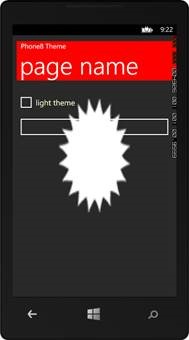
Here we can see the three main components; Dark.xaml, Light.xaml and Master.xaml. Let’s first look at the output so you can see the type of changes you can make. Obviously I’m being garish to exaggerate the difference, and normally I’d be more subtle 🙂 />

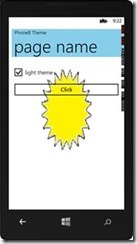
As you can see the explosion is white in the Dark theme and yellow in Light. Also the background brush in the header is red and sky blue for Dark and Light respectively. Essentially any style is available to change. So what have I changed to create this lovely theme sensitive UI?
Example Theme Xaml
Dark;
<ResourceDictionary
xmlns="http://schemas.microsoft.com/winfx/2006/xaml/presentation"
xmlns:x="http://schemas.microsoft.com/winfx/2006/xaml">
<SolidColorBrush x:Key="AppBackgroundBrush" Color="Red"/>
<SolidColorBrush x:Key="AppForegroundBrush" Color="#FFFBFFC9"/>
<Color x:Key="PhoneForegroundColor">#FF6E1919</Color>
<SolidColorBrush x:Key="PhoneForegroundBrush" Color="{StaticResource PhoneForegroundColor}"/>
<ImageBrush x:Key="ImageBrushBackground" ImageSource="/Background.png"/>
</ResourceDictionary>
Light;
<ResourceDictionary
xmlns="http://schemas.microsoft.com/winfx/2006/xaml/presentation"
xmlns:x="http://schemas.microsoft.com/winfx/2006/xaml">
<SolidColorBrush x:Key="AppBackgroundBrush" Color="SkyBlue"/>
<SolidColorBrush x:Key="AppForegroundBrush" Color="#FF303026"/>
<Color x:Key="PhoneForegroundColor">#FFF5F908</Color>
<SolidColorBrush x:Key="PhoneForegroundBrush" Color="{StaticResource PhoneForegroundColor}"/>
<ImageBrush x:Key="ImageBrushBackground" ImageSource="/BackgroundLight.png"/>
</ResourceDictionary>
The idea is that you use the same resource keys and change the underlying value to suite the theme. For example, we can see that the ImageSource for ImageBrushBackground is different for each theme.
How do you use the Theme files?
I owe the technique to a great post from IdentityMine, essentially you derive a new static resource type which loads the correct themed xaml *before* your page has started to load. I’ve wrapped this type in a separate component you can just reference and use. Rather than regurgitate the Identity Mine post I’ll explain how to use it, NB or you can just use the sample;
1. Create the Dark and Light xaml files as shown in Figure 1 Basic file structure
2. Add a reference to Pauliom.Theming.dll (or Pauliom.Phone8.Theming.dll)
3. Add a the Master.xaml to the Resources folder (change assembly as appropriate);
<ResourceDictionary xmlns=”http://schemas.microsoft.com/winfx/2006/xaml/presentation”
xmlns:x="http://schemas.microsoft.com/winfx/2006/xaml"
xmlns:local="clr-namespace:ThemingSample"
xmlns:Pauliom="clr-namespace:Pauliom.Theming;assembly=Pauliom.Theming">
<ResourceDictionary.MergedDictionaries>
<Pauliom:ThemeResourceDictionary Kind="Theme"/>
</ResourceDictionary.MergedDictionaries>
</ResourceDictionary>
4. The role of the Master is to provide a single place to create a master theme concept, you don’t need to use it so long are you put the ThemeResouceDictionary somewhere in your projects MergedDictionaries
5. Change App.xaml to make the resources available anyway in project, ensure the following in App.xaml, the first reference to Dark is your default, it helps the editors/designers;
<Application.Resources>
<ResourceDictionary>
<ResourceDictionary.MergedDictionaries>
<ResourceDictionary Source="Themes/Dark.xaml"/>
<ResourceDictionary Source="Resources/Master.xaml"/>
</ResourceDictionary.MergedDictionaries>
6. That is all you need, you are now free to reference those resource keys in the knowledge the changes to the underlying theme will be automatically routed to your specific themed file
The Sample
I hope you find this as useful as I do, and I hope it encourages more applications to use and react to themes. You can find the source and components at https://winphonetheme.codeplex.com


 IT Bytes