Klingon language on Window Phone

After a recent post about how to allow the Resource Manager to use a non-supported culture I wondered how difficult it would be to support the usual  localisation binding. So, in the great tradition of computer science I wanted to bind to Klingon. Whilst I can see that the correct solution would involve writing a custom tool I wanted a quick ‘hack’ and this is what I’m presenting here. To keep the post size down, I’m assuming you’ve followed the previous project and have that project available.

  1. Create the Klingon resx. Copy AppResource.en-GB.resx over to AppResources.klingon.resx
  2. Add the custom tool PublicResXFileCodeGenerator to AppResources.klingon.resx (see the properties of the file)
  3. Write some klingon – open the resx and change the ApplicationTitle to the following Klingon (it’s not rude) – TLHO’
  4. Create a new String Library class;
  5.  public class AlienLocalizedStrings
        {
            private static AppResources_klingon _localizedResources; 
            static AlienLocalizedStrings()
            {
                _localizedResources =  new AppResources_klingon();
                Type type = _localizedResources.GetType();
                FieldInfo info = type.GetField("resourceMan", BindingFlags.NonPublic | BindingFlags.Static | BindingFlags.SetField);
                info.SetValue(null, new AlienResourceManager("klingon"));
            }
            public AppResources_klingon LocalizedResources { get { return _localizedResources; } }
        }
    

  6. Add the resource to App.xaml
  7.     <Application.Resources>
            <local:LocalizedStrings  x:Key="LocalizedStrings"/>
            <local:AlienLocalizedStrings x:Key="AlienLocalizedStrings"/>
        </Application.Resources>
    

  8. Now you can bind to Klingon, e.g.

 <TextBlock Text="{Binding Path=LocalizedResources.ApplicationTitle , Source={StaticResource AlienLocalizedStrings}}" Style="{StaticResource PhoneTextNormalStyle}" Margin="12,0"/>

image

The solution works pretty well, obviously the string component is hardcoded to ‘klingon’ which isn’t ideal but I’m sure that can also be resolved with a little more effort. Enjoy Klingon on the phone Smile

Using a resource for an unsupported culture in Windows Phone

I was talking to a fellow dev about why the Resource Manager cannot support languages that the phone platform itself does not support. However, I thought that there probably would be a workaround…and here it is.

Step 1 – Create your basic project

Create phone project, by default this will create;

Resources\AppResources.resx

Step 2 – Add a test resource

Open the AppResources and add a new string called ‘ColourLabel’. I’m making the horrible assumption that you have defaulted to en-US so please enter the value of ‘Color’.

Step 3 – Add a new resource culture

Project->Add->Resource, e.g. AppResources.en-GB.resx

This should have copied our resource string from the master resource, so please change ‘ColourLabel’ to the correct spelling of ‘Colour’ Winking smile

Step 4 – Add a new unknown resource culture

Copy AppResource.en-GB.resx over to AppResources.en-XX.resx

Change ‘ColourLabel’ value from ‘Colour’ to our alien value of ‘ColourXX’

Step 5 – Change Build Action

If you try to use the ResourceManager to access en-XX it will fail because the culture is alien to the platform. So starts the workaround, change the BuildAction of en-XX to ‘Content’

Step 6 – Execute the resource manager

Running the following code…

 
AlienResourceManager britishResourceManager = new AlienResourceManager("en-GB");  
System.Diagnostics.Debug.WriteLine("en-GB: " + britishResourceManager.GetString("ColourLabel")); 
AlienResourceManager alienResourceManager = new AlienResourceManager("en-XX");  
System.Diagnostics.Debug.WriteLine("en-XX: " + alienResourceManager.GetString("ColourLabel"));  

results in the following output;

 
en-GB: Colour  
en-XX: ColourXX  

all done?

It’s fairly obvious that isn’t standard code, but it’s actually just a little over-riding of the standard ResourceManager. Here is my quick version, hope you find it useful.

  
public class AlienResourceManager : ResourceManager     
{         
  private string alienCultureName;         
  private Dictionary alienStrings = null;         
  private CultureInfo currentCulture;         
  public AlienResourceManager(string alienCultureName) :  base("MyPhoneApp.Resources.AppResources", typeof(AppResources).Assembly)         
  {             
    this.alienCultureName = alienCultureName;              
    try             
    {                 
      CultureInfo ci = new CultureInfo(alienCultureName);                 
      this.currentCulture = ci;             
    }             
    catch (Exception)             
    {                 
      LoadAlienStrings(alienCultureName);                 
      this.IsAlienCulture = true;             
    }         
  }          

  private void LoadAlienStrings(string alienCultureName)         
  {             
    var localisation = Application.GetResourceStream(new Uri("Resources/AppResources." + alienCultureName + ".resx", UriKind.Relative));             
    StreamReader resx = new StreamReader(localisation.Stream);             
    string resXml = resx.ReadToEnd();             
    XElement resourceFile = XElement.Parse(resXml);             
    this.alienStrings = new Dictionary();             
    var resourceStrings =              
      (from r in resourceFile.Descendants("data")              
      select new  { Name= r.Attribute("name").Value, Value = r.Element("value").Value}).ToList();              

    resourceStrings.ForEach(r => this.alienStrings.Add(r.Name, r.Value));          
  }           

  public bool IsAlienCulture { get; set; }          
  
  public override string GetString(string name)         
  {             
    if (this.IsAlienCulture)             
    {                 
      return this.alienStrings[name];             
    }             
    else             
    {                 
      return base.GetString(name, currentCulture);             
    }         
  }     
} 

Windows Phone 7 LongListSelector Sample with Accents and Culture support

Recently I’ve made a few posts about how to support different cultures and accents when using the Windows Phone 7 Long List Selector from the Windows Phone Toolkit. So rather than try and explain each bit I decided to finally publish the code showing how the MSDN sample can be altered to support both accented groupings and cultures;

https://wp7llssample.codeplex.com/

The sample is provided as-is, the code is mostly from MSDN with a few tweaks. You should not accept this as production ready code, please carry out your own tests.

Accented grouping

Capture

Japanese grouping

JapaneseGrouping

Japanese Jump List

JapaneseJumpList

Windows 8 and the Light Blue Screen of Stuck

I’m not exactly sure how I managed this, perhaps because a cancelled a restart, but I ended up with Windows 8 showing me a blank light blue screen. I had a mouse but that’s it. No text, no chasing dots around a circle, nada. After watching it for while, after-all interrupting an ‘update & restart’ is not something I do lightly, I decided action was needed. So here’s the advice. CTRL+ALT+DEL->Task Manager->New Task->”Explorer”. The desktop sprang to life and I was able to re-ask for ‘update and restart’ which it duly did.

Windows Phone – design time bindings not showing?

I confess that I am very stubborn about a few issues when it comes to Windows Phone development; support themes, support landscape, provide design time support. Recently I’ve been using MVVM Light to develop an application and it has great support for design time data. However, at some random point during the development the designer failed to show the sample data. This isn’t the first time I’ve seen this so I decided to have a dig and find out what was going on. Basically it’s flaky, very flaky. At first the problem seemed to be with one type of sample data I was creating. When I commented the code out, the sample data appeared, put it back the sample data vanished. So I thought I was onto something. Just a red-herring. Eventually, after I left it for a period of time, the sample data vanished and stayed away regardless of what I removed. I then looked at Task Manager for clues. Sure enough there were two instances of ‘Microsoft Visual Studio XAML UI Designer’ running, one for each xaml project I had opened. So I killed both of them off, and returned to my problem xaml page. Selected ‘reload designer’ and the sample data sprang back to life. As I said, flaky. So in summary, I still don’t know what the problem is, but killing the UI designer and reloading a new one seems to resolve it, plus you don’t have to restart VS to do that. If you do know the answer to this then please let me know!

Edit:
Aha! Turns out the bulk of my problems was an issue with the sample data. Essentially when I created my sample data I had inadvertently caused a null exception. However, rather then show any error the designer had gracefully eaten the exception and sulked. So, if your data vanishes, check out your sample data for errors.

Windows Phone SIP types and HTML

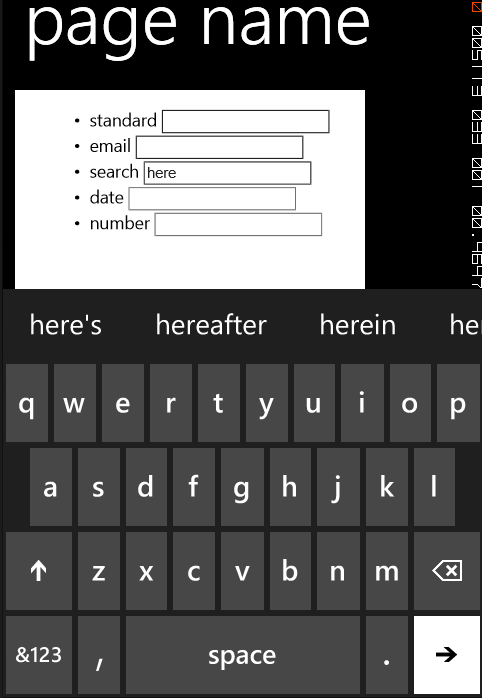
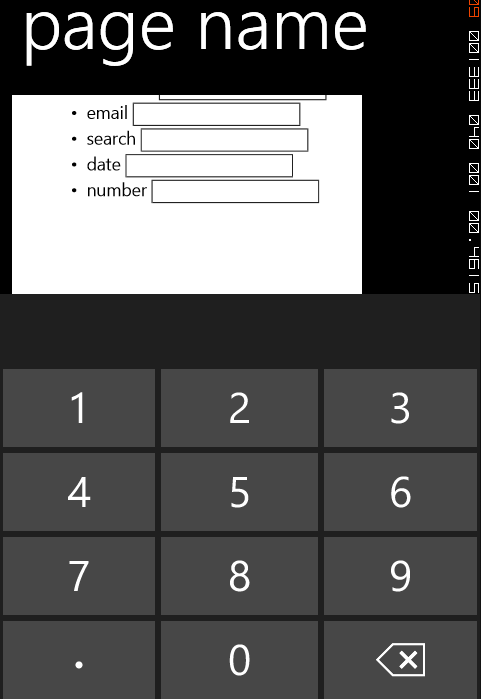
Recently I had a conversation about what SIP is displayed when you are viewing an HTML page on the phone. Here’s what I discovered;

Consider the following phone page showing some html in the browser control;

image

Standard input type, standard text SIP

image

<intput type=”email” /> and we get the email SIP

image

<input type=”search” /> we get the Search SIP (note the highlighted submit)

image

<input type=”number” /> we get the number SIP

image

I haven’t tried all the combinations but you can see that the HTML5 tags and the Phone SIPs do try and play nicely together

Windows Phone Jump List groupings

In a recent post about displaying a longlistselector in wp7 I eluded to code that would need to be correctly localised. Whilst I haven’t had the time to produce the code, I thought this may prove useful in the meantime (Note: the cultures are from wp8 and may change in future releases);
(Edit) – made it a bit easier to consume, shows phonetic support and corrected issue with the a poor cut that chopped the last character

{“sq-AL”,”#abcdefghijklmnopqrstuvwxyz…”}, \\ SupportsPhonetics False
{“ar-SA”,”ابتثجحخدذرزسشصضطظعغفقكلمنهوي…#abcdefghijklmnopqrstuvwxyz”}, \\ SupportsPhonetics False
{“Az-Latn-AZ”,”#abcdefghijklmnopqrstuvwxyz…”}, \\ SupportsPhonetics False
{“be-BY”,”абвгѓґдђеёєжзѕиїјкќлљмнњопрстћуўфхцччџшщъыьэюя…#abcdefghijklmnopqrstuvwxyz”}, \\ SupportsPhonetics False
{“bg-BG”,”абвгѓґдђеёєжзѕиїјкќлљмнњопрстћуўфхцччџшщъыьэюя…#abcdefghijklmnopqrstuvwxyz”}, \\ SupportsPhonetics False
{“ca-ES”,”#abcdefghijklmnopqrstuvwxyz…”}, \\ SupportsPhonetics False
{“zh-CN”,”#ABCDEFGHIJKLMNOPQRSTUVWXYZ…”}, \\ SupportsPhonetics False
{“zh-TW”,”ㄅㄆㄇㄈㄉㄊㄋㄌㄍㄎㄏㄐㄑㄒㄓㄔㄕㄖㄗㄘㄙㄚㄛㄜㄝㄞㄟㄠㄡㄢㄣㄤㄥㄦㄧㄨㄩ…#abcdefghijklmnopqrstuvwxyz”}, \\ SupportsPhonetics False
{“hr-HR”,”#abcdefghijklmnopqrstuvwxyz…”}, \\ SupportsPhonetics False
{“cs-CZ”,”#abcdefghijklmnopqrstuvwxyz…”}, \\ SupportsPhonetics False
{“da-DK”,”#abcdefghijklmnopqrstuvwxyzæøå…”}, \\ SupportsPhonetics False
{“nl-NL”,”#abcdefghijklmnopqrstuvwxyz…”}, \\ SupportsPhonetics False
{“en-US”,”#abcdefghijklmnopqrstuvwxyz…”}, \\ SupportsPhonetics False
{“en-GB”,”#abcdefghijklmnopqrstuvwxyz…”}, \\ SupportsPhonetics False
{“et-EE”,”#abcdefghijklmnopqrsšzžtuvwõäöũxy…”}, \\ SupportsPhonetics False
{“fil-PH”,”#abcdefghijklmnopqrstuvwxyz…”}, \\ SupportsPhonetics False
{“fi-FI”,”#abcdefghijklmnopqrstuvwxyzåäö…”}, \\ SupportsPhonetics False
{“fr-FR”,”#abcdefghijklmnopqrstuvwxyz…”}, \\ SupportsPhonetics False
{“de-DE”,”#abcdefghijklmnopqrstuvwxyz…”}, \\ SupportsPhonetics False
{“el-GR”,”αβγδεζηθικλμνξοπρστυφχψω…#abcdefghijklmnopqrstuvwxyz”}, \\ SupportsPhonetics False
{“he-IL”,”אבגדהוזחטיכלמנסעפצקרשת…#abcdefghijklmnopqrstuvwxyz”}, \\ SupportsPhonetics False
{“hi-IN”,”अआइईउऊऋएऐऑओऔकखगघचछजझटठडढणतथदधनपफबभमयरलवशषसह…#abcdefghijklmnopqrstuvwxyz”}, \\ SupportsPhonetics False
{“hu-HU”,”#abcdefghijklmnopqrstuvwxyz…”}, \\ SupportsPhonetics False
{“id-ID”,”#abcdefghijklmnopqrstuvwxyz…”}, \\ SupportsPhonetics False
{“it-IT”,”#abcdefghijklmnopqrstuvwxyz…”}, \\ SupportsPhonetics False
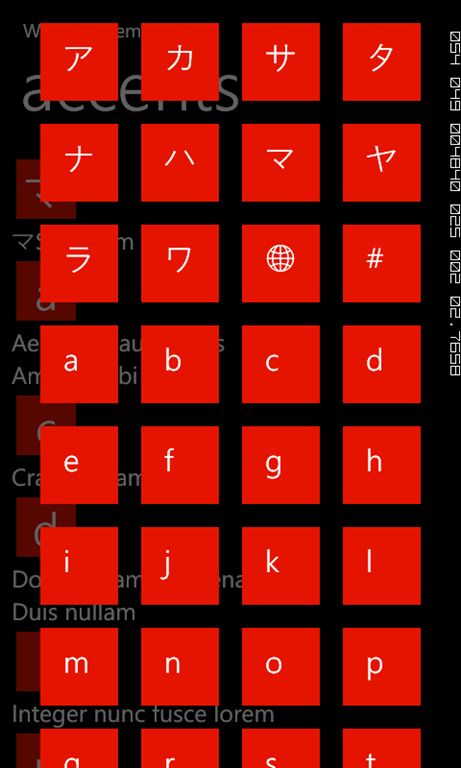
{“ja-JP”,”アカサタナハマヤラワ…#abcdefghijklmnopqrstuvwxyz”}, \\ SupportsPhonetics True
{“kk-KZ”,”абвгѓґдђеёєжзѕиїјкќлљмнњопрстћуўфхцччџшщъыьэюя…#abcdefghijklmnopqrstuvwxyz”}, \\ SupportsPhonetics False
{“ko-KR”,”ㄱㄴㄷㄹㅁㅂㅅㅇㅈㅊㅋㅌㅍㅎ#abcdefghijklmnopqrstuvwxyz…”}, \\ SupportsPhonetics False
{“lv-LV”,”#abcdefghijklmnopqrstuvwxyz…”}, \\ SupportsPhonetics False
{“lt-LT”,”#abcdefghijklmnopqrstuvwxyz…”}, \\ SupportsPhonetics False
{“mk-MK”,”абвгѓґдђеёєжзѕиїјкќлљмнњопрстћуўфхцччџшщъыьэюя…#abcdefghijklmnopqrstuvwxyz”}, \\ SupportsPhonetics False
{“ms-MY”,”#abcdefghijklmnopqrstuvwxyz…”}, \\ SupportsPhonetics False
{“nb-NO”,”#abcdefghijklmnopqrstuvwxyzæøå…”}, \\ SupportsPhonetics False
{“fa-IR”,”ابپتثجچحخدذرزژسشصضطظعغفقکگلمنوهی…#abcdefghijklmnopqrstuvwxyz”}, \\ SupportsPhonetics False
{“pl-PL”,”#abcdefghijklmnopqrstuvwxyz…”}, \\ SupportsPhonetics False
{“pt-BR”,”#abcdefghijklmnopqrstuvwxyz…”}, \\ SupportsPhonetics False
{“pt-PT”,”#abcdefghijklmnopqrstuvwxyz…”}, \\ SupportsPhonetics False
{“ro-RO”,”#abcdefghijklmnopqrstuvwxyz…”}, \\ SupportsPhonetics False
{“ru-RU”,”абвгдеёжзийклмнопрстуфхцчшщъыьэюя…#abcdefghijklmnopqrstuvwxyz”}, \\ SupportsPhonetics False
{“sr-Latn-CS”,”#abcdefghijklmnopqrstuvwxyz…”}, \\ SupportsPhonetics False
{“sk-SK”,”#abcdefghijklmnopqrstuvwxyz…”}, \\ SupportsPhonetics False
{“es-ES”,”#abcdefghijklmnopqrstuvwxyz…”}, \\ SupportsPhonetics False
{“es-MX”,”#abcdefghijklmnopqrstuvwxyz…”}, \\ SupportsPhonetics False
{“sv-SE”,”#abcdefghijklmnopqrstuvwxyzåäö…”}, \\ SupportsPhonetics False
{“th-TH”,”กขฃคฅฆงจฉชซฌญฎฏฐฑฒณดตถทธนบปผฝพฟภมยรลวศษสหฬอฮ…#abcdefghijklmnopqrstuvwxyz”}, \\ SupportsPhonetics False
{“tr-TR”,”#abcçdefgğhıijklmnoöprsştuüvyz…”}, \\ SupportsPhonetics False
{“uk-UA”,”абвгѓґдђеёєжзѕиїјкќлљмнњопрстћуўфхцччџшщъыьэюя…#abcdefghijklmnopqrstuvwxyz”}, \\ SupportsPhonetics False
{“uz-Latn-UZ”,”#abcdefghijklmnopqrstuvwxyz…”}, \\ SupportsPhonetics False
{“vi-VN”,”#abcdefghijklmnopqrstuvwxyz…”}, \\ SupportsPhonetics False

How to use wp7 LongListSelector with Blend Sample Data

In my previous post, How to use Blend sample data with a LongListSelector, I described a a step by step approach to allow Blend sample data to be used with the Wp8 LongListSelector. It makes development a lot easier. However, recently I’ve seen people struggling with the Windows Phone 7 toolikit version and so I thought I’d create this little amendment to support wp7.

  1. Follow the wp8 guide from the link above, it won’t compile but don’t worry we’ll correct it
  2. Replace the magic alpha key class with the following (it has some room for improvement, I’ll get to that later);
     
    
    using System.Collections.Generic;
    using System.Globalization;
    
    namespace LLSSample
    {
        public class AlphaKeyGroup<T> : List<T>
        {
            static string SortedLocalGrouping = "#abcdefghijklmnopqrstuvwxyz";
            /// <summary>
            /// The delegate that is used to get the key information.
            /// </summary>
            /// <param name="item">An object of type T</param>
            /// <returns>The key value to use for this object</returns>
            public delegate string GetKeyDelegate(T item);
    
            /// <summary>
            /// The Key of this group.
            /// </summary>
            public string Key { get;  set; }
    
            
            /// <summary>
            /// Public constructor.
            /// </summary>
            /// <param name="key">The key for this group.</param>
            public AlphaKeyGroup(string key)
            {
                Key = key;
            }
    
            public override string ToString()
            {
                return Key;
            }
            /// <summary>
            /// Create a list of AlphaGroup<T> with keys set by a SortedLocaleGrouping.
            /// </summary>
            /// <param name="slg">The </param>
            /// <returns>Theitems source for a LongListSelector</returns>
            private static List<AlphaKeyGroup<T>> CreateGroups(string nameList)
            {
                List<AlphaKeyGroup<T>> list = new List<AlphaKeyGroup<T>>();
    
                foreach (char key in nameList.ToCharArray() )
                {
                    list.Add(new AlphaKeyGroup<T>((key.ToString())));
                }
    
                return list;
            }
    
            /// <summary>
            /// Create a list of AlphaGroup<T> with keys set by a SortedLocaleGrouping.
            /// </summary>
            /// <param name="items">The items to place in the groups.</param>
            /// <param name="ci">The CultureInfo to group and sort by.</param>
            /// <param name="getKey">A delegate to get the key from an item.</param>
            /// <param name="sort">Will sort the data if true.</param>
            /// <returns>An items source for a LongListSelector</returns>
            public static List<AlphaKeyGroup<T>> CreateGroups(IEnumerable<T> items, CultureInfo ci, GetKeyDelegate getKey, bool sort)
            {
    
                List<AlphaKeyGroup<T>> list = CreateGroups(SortedLocalGrouping);
    
                foreach (T item in items)
                {
                    int index = 0;
                    
                    {
                        string label = getKey(item);
                        index = SortedLocalGrouping.IndexOf(label[0].ToString().ToLower());
                    }
                    if (index >= 0 && index < list.Count)
                    {
                        list[index].Add(item);
                    }
                }
    
                if (sort)
                {
                    foreach (AlphaKeyGroup<T> group in list)
                    {
                        group.Sort((c0, c1) => { return ci.CompareInfo.Compare(getKey(c0), getKey(c1)); });
                    }
                }
    
                return list;
            }
    
        }
    }
    
  3. That’s enough, you can carry on following your favourite wp7 LLS tutorial. However, I’ve included the XAML from my sample too;
     
        <phone:PhoneApplicationPage.Resources>
            <DataTemplate x:Key="AddrBookItemTemplate">
                <StackPanel VerticalAlignment="Top">
                    <TextBlock FontWeight="Bold"  Text="{Binding FirstName}" />
                    <TextBlock Text="{Binding LastName}" />
                    <TextBlock Text="{Binding Address}" />
                    <TextBlock Text="{Binding Phone}" />
                </StackPanel>
            </DataTemplate>
            <DataTemplate x:Key="AddrBookGroupHeaderTemplate">
                <Border Background="Transparent" Padding="5">
                    <Border Background="{StaticResource PhoneAccentBrush}" BorderBrush="{StaticResource PhoneAccentBrush}" BorderThickness="2" Width="62" 
             Height="62" Margin="0,0,18,0" HorizontalAlignment="Left">
                        <TextBlock Text="{Binding Key}" Foreground="{StaticResource PhoneForegroundBrush}" FontSize="48" Padding="6" 
                FontFamily="{StaticResource PhoneFontFamilySemiLight}" HorizontalAlignment="Left" VerticalAlignment="Center"/>
                    </Border>
                </Border>
            </DataTemplate>
            <DataTemplate x:Key="GroupItemsTemplateWp7">
                <Border Background="{StaticResource PhoneAccentBrush}" Margin="{StaticResource PhoneTouchTargetOverhang}" Padding="{StaticResource PhoneTouchTargetOverhang}">
                    <TextBlock Text="{Binding Key}" Style="{StaticResource PhoneTextLargeStyle}"/>
                </Border>
            </DataTemplate>
            <ItemsPanelTemplate x:Key="GroupItemsPanelTemplate">
                        <toolkit:WrapPanel Orientation="Horizontal"/>   
            </ItemsPanelTemplate>
        </phone:PhoneApplicationPage.Resources>
    
     
    <toolkit:LongListSelector
                      x:Name="AddrBook"
                      IsFlatList="False"
                      DisplayAllGroups="True"
                      DataContext="{Binding Source={StaticResource LongListSelectorData}}"
                      ItemsSource="{Binding DataSource}"
                      Background="Transparent"
                      GroupHeaderTemplate="{StaticResource AddrBookGroupHeaderTemplate}"
                      ItemTemplate="{StaticResource AddrBookItemTemplate}" GroupItemTemplate="{StaticResource GroupItemsTemplateWp7}" GroupItemsPanel="{StaticResource GroupItemsPanelTemplate}"
                      />
    
    
  4. Enjoy design time editing in wp7 too 🙂

Ah, about the differences. The original alpha key class uses some nice localisation tricks that provides the jump list and group headers to be correctly grouped depending upon the users culture. This version is stuck with a hard-coded English character set. I’ve left the skeleton of the code the same as the wp8 version so you can implement your own localisation routines. If I have time I’ll publish that a later date. Hopefully there should be enough there to help you get on.

What is stored on the Windows Phone back stack?

Recently I was in a conversation about memory usage on the Windows Phone. The conversation turned to the Phone back stack and the question became, “what is stored on the back stack?” So I created a very simple application; MainPage.xaml allows the user to select and show a picture. It also contains a link to Page1.xaml. Page1 displays a count of the back stack plus a simple view model that contains a large chunk of dummy data and a creation timestamp. It also has a link to MainPage.xaml. To be clear, there is no code that reloads or stores/restores state, everything is creating either in the constructor or from user input. This allowed me to create a test with the following stack;

MainPage.xaml (pic1) –> Page1.xaml (Count=1) –> MainPage (pic2) –> Page1.xaml (Count=3), etc.

The results show that EVERYTHING is stored on the stack, user selected pictures, view models, everything . As you move back through the stack all the pictures and the old timestamps are all correctly displayed. The only limit on how big the stack can grow is the memory ceiling.

Resume and Tombstoned

Any Windows Phone developer will know the story isn’t as simple as that, what about Resume and Tombstone? If you have travelled through a number of pages and press the Windows key then your app will be deactivated. If you switch back to your app and the OS has allowed you to Resume then all of the state will be ready for you. The implication here is that your entire apps memory footprint can be hanging around until the OS decides you no longer want it. However, if your application is Tombstoned then only the navigation URI history is automatically retained. Consider the following stack with the selected picture and the view model timestamp;

Main Page (pic1) –> Page 1 (T1) –> Main Page (pic2) –> Page 1 (T2)

With a successful Resume you will be able to back-through the application and get;

Page 1 (T2) –> Main Page (pic2) –> Page 1 (T1) –> Main Page (pic1) –> Close

However, if your app is Tombstoned you will get;

Page 1 (T3) –> Main Page (empty) –> Page 1 (T4) –> Main Page (empty) –> Close

Therefore under Tombstoned conditions it is up to you to store and restore any state you wish to present to the user or even remove the back stack if that makes more sense.

Summary

If your application allows an ‘infinite’ stack to form then you should worry about the memory implications and consider using a strategy that will either/or prevent the stack growing too large or clear up resources as you navigate away from a page.

(Edit) What happens when you back-out through the stack?

One thing I didn’t mention was when are the pages fully destroyed? As you move away from a page (in either direction) the page unload is called, but the underlying object remains. As you move back through the stack the page objects are reclaimed. This will not necessarily happen immediately, but you should eventually see the destructors called for pages.

Binding tip, only create observable collection once

I thought I’d share a really silly mistake I’ve just made. I have a list selector that is bound to an observable collection in my view model. However, when I was adding items to the collection they were not showing in the list. The mistake I had made was that upon refreshing the list I was using collection = new collection, this breaks the binding. So ensure you only create your target collection and if you want to refresh it then use collection.Clear().

Doh!