How to use a button within a List Item

One of the problems with Silverlight is that the templating mechanism is really good but you can quickly get a bit stuck. I ran into one such example when I had created a nice DataTemplate for a ListBoxItem that contained a button. When the button is clicked I wanted a specific action to take place in the context of the containing list box item, i.e. I wanted the list box item to be selected because the user has pressed a button within the item.

<DataTemplate x:Key="MyDataTemplate">

     <Grid>

       <Button Content="Edit" Click="Button_Click" />

     </Grid>

</DataTemplate>


The problem is that the Button_Click event will fire but none of the event args will explain which of the potentially many buttons has been pressed. WPF uses tricks such as binding the button’s tag to an ancestor element but SL2 doesn’t (I believe) offer this feature. One solution is to skip the button click event and simulate the button via some mouse down events and event bubbling but that seemed too dirty for me. So I thought I could walk the control tree and find which ListBoxItem the button was within. You have to be a bit careful here because templating/themes can introduce a different logical tree so you must walk the tree looking for a ListBoxItem rather than assuming a specific number of hops. BTW, in theory the ListBoxItem itself may have been “styled” out too so you should degrade gracefully if you can’t find the ListBoxItem.

So I wrote some code to loop and walk the FrameworkElement.Parent properties. This didn’t work since the .Parent returned null at the ContentPresenter boundary, i.e. before the ListBoxItem. Still not sure exactly why that is, but I needed a quick solution so I turned to the Visual tree instead. This proved to be the solution…

private void Button_Click(object sender, RoutedEventArgs e)

{


    Button buttonSender = sender as Button;

    // which item is containing the button?

    DependencyObject currentElement = buttonSender;

    ListBoxItem selectedItem = currentElement as ListBoxItem;

    DependencyObject theParent = VisualTreeHelper.GetParent(currentElement);

    while (selectedItem == null && theParent != null)

    {               

        currentElement = theParent;

        selectedItem = theParent as ListBoxItem;

        theParent = VisualTreeHelper.GetParent(currentElement);

    }


    // if we have found an item then ensure it is selected

    if (selectedItem != null)

    {

        selectedItem.IsSelected = true;

    }


}


Thanks to Keith Mohoney’s Post for the information about the Visual Tree Helper
Silly gotcha when using sample data in Blend

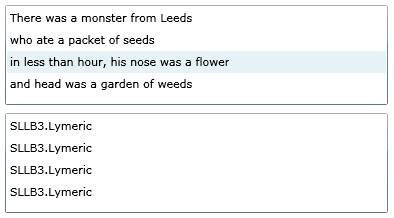
I was working on a list box project and wanted to use Blend to edit my container styles when I was faced with the age old problem of providing Blend with some useful data. So I created a nice little collection class wrapping my target object and asked Blend to use it as a datasource, ensuring that the collection would initialise itself in its constructor. Hurray I had a nice design view with sample data. However, when I switched back to Visual Studio it complained that the resource xaml containing my datasource definition was invalid, the dreaded AEG error. After a great deal of head scratching I realised that somehow Blend had successfully added an x:Name attribute to the resource but my collection class does not derive from any Element and therefore does not have an x:Name. Once I realised that I (ahem) hacked a quick derive-from-user control onto the collection class and we’re up and running again. So watch out, just cause Blend doesn’t complain doesn’t mean it hasn’t generated some dodgy xaml.

UX catalogue

A bit of tenuous Silverlight post but hey it’s running in Silverlight. A nice application showing a large number of user experience "patterns".

Trouble selling Silverlight?

Just read an interesting blog about Evangelising Silverlight. I didn’t realise it was realised in Windows Update, I’ll have to check that out.

Are you sure you want to create your own Custom membership provider?

As you may have read in my previous posts I’ve been investigating the use of the ASP.NET membership provider with Silverlight. The next stage was to write my own custom membership provider because I’ve a requirement to have a two part user name, much like Domain\User Name rather than just User Name. The web has a number of tutorials about rolling your own provider but for me this seemed like over-kill, I’m quite happy with the SQL Provider I just want to enforce a few extra rules, store a couple of other facts, audit specific changes, etc. Although I could use a regular expression to help me out it wouldn’t fulfill all my requirements. So my solution is to just derive from the SQL Provider;
 

    public class MyOwnSqlProvider : SqlMembershipProvider          

    {

        public override bool ValidateUser(string username, string password)

        {

            System.Diagnostics.Debug.WriteLine(username + " – " + password);

            return base.ValidateUser(username, password);

        }

    }


There we have, I can intercept the calls, add my own rules, etc. The only other change is to the web config to tell the world about the new provider.


    <membership defaultProvider="MyAspNetSqlMembershipProvider">

      <providers>

        <add name="MyAspNetSqlMembershipProvider" type="MyMembershipDemo.Web.MyOwnSqlProvider" connectionStringName="LocalSqlServer" enablePasswordRetrieval="false" enablePasswordReset="true" requiresQuestionAndAnswer="true" applicationName="/" requiresUniqueEmail="false" passwordFormat="Hashed" maxInvalidPasswordAttempts="5" minRequiredPasswordLength="7" minRequiredNonalphanumericCharacters="1" passwordAttemptWindow="10" passwordStrengthRegularExpression=""/>

      </providers>


I’m not suggesting that this removes the need to write your own provider but if, like me, you only want to make a couple of subtle changes then this might save a lot of effort. BTW if you do want to delve deeper into writing your provider then you should take a look at Microsoft’s Provider Toolkit

Silverlight cross-domain policy helper

One thing I didn’t mention in my last Silverlight post was about how to create a cross domain policy file to allow Silverlight to use a web service. I found this xml snippet post to be very helpful.

More on Integrating Silverlight with ASP.NET membership authentication

Ok, so strictly this should be entitled Integrating Web Services and ASP.NET membership authentication but it’s from a Silverlight client hence the title. So in my previous post I provided a link to a great article explaining how to get a Silverlight client to use ASP.NET membership features. The next step for me was how to a write a web service that will only allow calls from a Silverlight user who has signed in. Here is how I did it;

Assuming you have followed the previous post and now have a Silverlight client that can authenticate users via the membership providers then the next step is to write your web services.

1. Create Service
Although you can as a web service to the current ASP.NET site it’s probably more likely that you’ll want a separate web service project so Add->New Project->Web Service. If you’re using the default templates then you should see a HelloWorld web method created for you.

        [WebMethod]

        public string HelloWorld()

        {

            return "Hello World";

        }

2. Connect the Service to the same Membership database
As I mentioned in my previous post, you’re better off providing your own connection string for the membership store, so now you’ve created a new site you have to add the same connection string to the web service, something like;

  <connectionStrings>

    <remove name="LocalSqlServer"/>

    <add name="LocalSqlServer" connectionString="Data Source=.\MySQLServer;Initial Catalog=aspnetdb;Integrated Security=True" providerName="System.Data.SqlClient"/>

  </connectionStrings>


3. Add a reference from your Silverlight client to the service
In the Silverlight project Add Service Reference and press discover. If your service doesn’t show make sure you’ve built the project, VS sometimes won’t spot the new project until it has been built.

4. Add the code to call your service
Nothing special here except you may want to catch exceptions because the user isn’t authenticated (forgive the rubbish use of Execption here);

        private void TestService_Click(object sender, RoutedEventArgs e)

        {

            ServiceReference1.Service1SoapClient testService = new ApplicationServicesDemo.ServiceReference1.Service1SoapClient();

            testService.HelloWorldCompleted += new EventHandler<ApplicationServicesDemo.ServiceReference1.HelloWorldCompletedEventArgs>(testService_HelloWorldCompleted);

            testService.HelloWorldAsync();

        }


        void testService_HelloWorldCompleted(object sender, ApplicationServicesDemo.ServiceReference1.HelloWorldCompletedEventArgs e)

        {

            try

            {

                TestService.Content = "Test -" + e.Result;

            }

            catch (Exception)

            {

                TestService.Content = "Please sign in";

            }         

        }

To handle the exception correctly you need to delve into the inner exception but hopefully you get the idea.
5. Secure the web method
The easiest way to secure the method is to add a System.Security.Permissions attribute to the method;

        [WebMethod]

        [PrincipalPermission(SecurityAction.Demand, Authenticated = true)]

        public string HelloWorld()

        {

            return "Hello World";

        }

There you have it. One "secure" web service. If your user is authenticated via membership then they’ll have access, if they don’t then the service will tell a white lie and say the service doesn’t exist.

A couple of useful tools

A quick heads-up to a couple of tools I’ve found useful. The first is Windows Live Writer, finally a easy way to get images into this rusty old blog. The second is Silverlight Spy, a really nice way to help get to grips with what happens when you finally run a Silverlight application.

Styling the Listbox Control with Blend


Silverlight (and WPF) provides very powerful mechanisms to change the look and feel of standard controls. However, as I’ve discovered, it’s not always obvious how to let Blend help you affect the changes.

Blend – friend and (innocent) foe

Recently I wanted to both edit the style (change the basic properties such as colour and font) and template (change the layout and structure of a control) of a Listbox. The main change I was after was to make the list horizontal rather than vertical whilst retaining all the other Listbox features.

Creating sample data

So before we discover where to go to make the changes I want to see some example data in Blend rather than running the application. One method is to; in Visual Studio create the basic class that you’ll bind the Listbox to. Return to Blend and select the Listbox->Properties->Items (Collection)->Add Another Item. Select the class you created and enter in your example data. You then go into the Xaml view and copy and paste the sample data as you wish. So we have data but how to style it? Once you have your Listbox selected Blend has many options; Edit Style, Edit Other Styles, Edit Control Parts (Template), Edit Other Templates. So there you have it, not a confusing array of choices at all! So what do these options do for you?

<ListBox Margin="0,0,17,0" VerticalAlignment="Top" Height="100">

            <ListBoxItem Content="There was a monster from Leeds"/>

            <ListBoxItem Content="who ate a packet of seeds"/>

            <ListBoxItem Content="in less than hour, his nose was a flower"/>

            <ListBoxItem Content="and head was a garden of weeds"/>

        </ListBox>

        <ListBox Margin="0,115,17,85">

            <SLLB3:Lymeric Verse="There was a monster from Leeds"/>

            <SLLB3:Lymeric Verse="who ate a packet of seeds"/>

            <SLLB3:Lymeric Verse="in less than hour, his nose was a flower"/>

            <SLLB3:Lymeric Verse="and head was a garden of weeds"/>

        </ListBox>

Figure 1 Standard and Sample data Listboxes – Xaml

clip_image002

Figure 2 Standard and Sample data Listboxes

Edit Style

The main sub-menu here is Edit Copy. Essentially I want to steal the current style of the Listbox and make a few adjustments, so Edit Copy inserts the current template for you, good news. So we’re at the style level, lots of colours, fonts, etc. Inside the style is the setter for the template. So with Blend looking at the style you can then select Edit Control Parts (Template) and you’re ready to change the layout…well not quite. What I’d expected to see was a large chunk of Xaml describing the state changes for events such as mouse over, leave, etc. What I get was a very dry few lines showing a content presenter…hmm not much use.

clip_image004

Figure 3 Changing a copy of the default style

Edit Other Styles

The sub menu here ItemContainerStyle is the one I’m after. Translating Blend speak, this creates the Listbox Item Style (and template). Once you have a style for a Listbox item you’re free to edit its Control Parts (Template)…

clip_image006

Figure 4 Changing the Listbox Item style

Edit Control Parts (Template)

If you attempt this with the List Box selected you end up with the dry container style you get from Edit Style. However, you should select this after you’ve gone via Edit Other Styles->ItemContainerStyle, i.e. with the style selected. This will take you to the template of the Listbox item (or Control Part Template in Blendease). Finally we’re at the good stuff, Visual State Manager Xaml everywhere.

clip_image008

Figure 5 Changing the MouseOver state to a "nice" pink

Edit Other Templates

Other Templates has two menus; Edit Generated Items (ItemTemplate), Edit Layout of Items (ItemPanel).

Edit Generated Items (ItemTemplate)

Translating Blend this creates the Data Template, i.e. the controls to render the items of data you’re going to bind to. So for a standard Listbox this would be a TextBlock bound to toString. This is an important template if you want to display other data types, e.g. bound images and captions.

clip_image010

Figure 6 Data Template, at last the data

Edit Layout of Items (ItemPanel)

Item Panel means the control (or controls) that contain the items in the data template, i.e. think of it as the data repeater. In my case this is the template I needed to change in order to get the Listbox to display horizontally rather than vertically.

clip_image012

Figure 7 Changing the layout to a Horizontal StackPanel


So there you have it, the first steps in styling & templating a listbox. What I’m looking at doing next is to rearrange the scroll bar…

Getting the name of an Element in Silverlight (WPF)

Quick post this, today I found myself wanting to get the name of element that raised an event, and as always the simpliest requests in Silverlight are often the hardest. Well ok, it wasn’t hard but perhaps not obvious so I thought I’d post it so at least I’ll be able to do it again…
 
So you put a click event on something and you want to know the name of the button…
<Button x:Name="Bob" />
 
Well the trick is knowing that name is a Framework Element property so…
 

private void Bob_Click(object sender, RoutedEventArgs e)

{

FrameworkElement frameworkElement = (FrameworkElement)sender;

string name = frameworkElement.Name;

}

Knowing that you could also use…

string name = ((UIElement)sender).GetValue(FrameworkElement.NameProperty).ToString();

…and knowing that you could e.OriginalSource depending upon the element you want to know the name of.